
Course Progress
50%
Course Progress
Stay Private Online: How to Use Private Browsing
It's Day 54, and today we'll focus on private browsing—a feature that allows you to browse the web without leaving a trail of your activity on your computer. Private browsing can be useful if you're using a shared computer or want to prevent websites from tracking your activity.
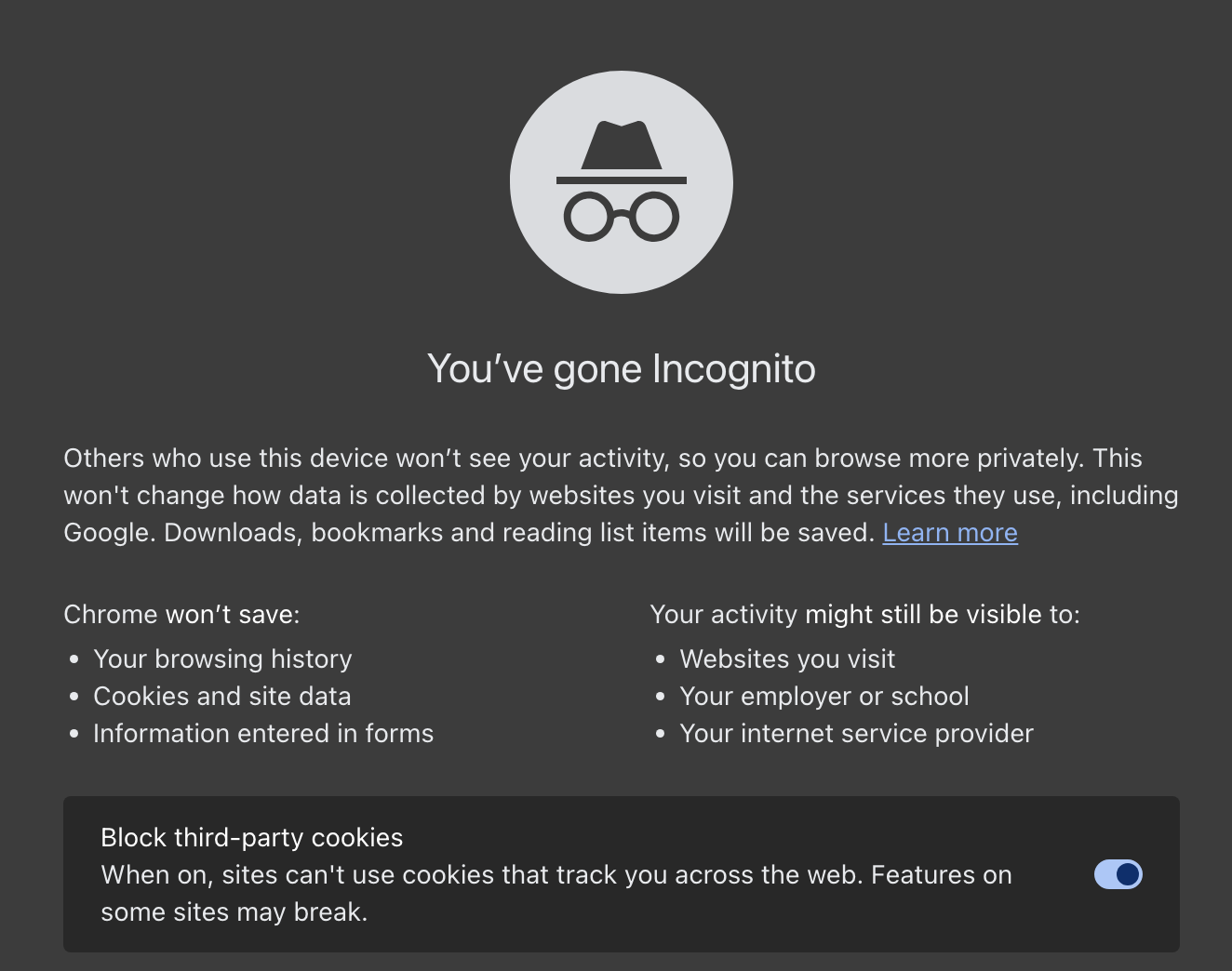
Private browsing, also known as Incognito Mode (Chrome) or Private Window (Safari, Firefox), is a feature that prevents your browser from saving your browsing history, cookies, and form data.
Open a private window: In Chrome, click the three dots in the top-right corner and select New Incognito Window. In Safari and Firefox, select New Private Window from the menu.
Browse as usual: You can search and visit websites as you normally would, but none of your activity will be saved to your history.
Close the window: Once you close the private window, all cookies and session data are erased.
Private browsing is useful for keeping your activity confidential, especially if you're using a shared or public computer. It also prevents websites from storing cookies, which track your behavior across the web.
Open a private browsing window in your web browser and visit a few websites. When you close the window, your browsing history will not be saved.
Private browsing doesn't make you anonymous to your internet service provider or the websites you visit. To truly hide your activity, you'll need to use a VPN (Virtual Private Network).
