
Course Progress
50%
Course Progress
Navigating Files and Folders with File Explorer
Welcome to Day 7! Now that you know the difference between files and folders, let's learn how to navigate through them using a tool called File Explorer (on Windows) or Finder (on Macs). These tools are your go-to resources for accessing, organizing, and managing the contents of your computer.
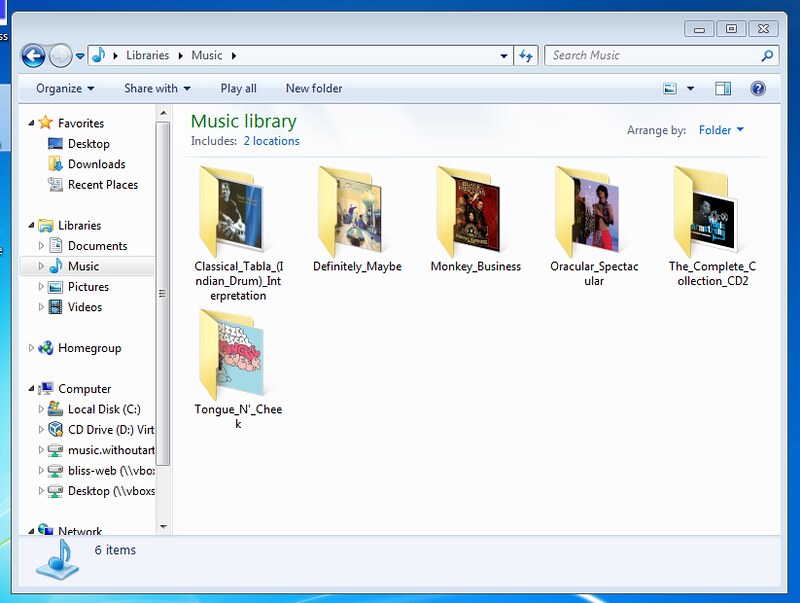
File Explorer (Windows) or Finder (Mac) is the program that lets you see and manage all the files and folders stored on your computer. Think of it like a digital filing cabinet that helps you locate, open, move, or delete your documents and media files.
Opening a Folder: Double-click on a folder to see the files and subfolders inside.
Back and Forward Buttons: These work just like in a web browser, allowing you to move back and forth between folders you've recently visited.
Search Bar: If you can't find a specific file or folder, use the search bar at the top of File Explorer or Finder. Just type in part of the file name, and it will locate it for you.
Navigating through your computer's file system efficiently will save you a lot of time when searching for important documents or organizing your folders. As you start using your computer more, you'll accumulate more files, so learning how to manage them will keep your workspace clean and productive.
Open File Explorer (on Windows) or Finder (on Mac), and explore the folders already on your computer. Practice:
Opening folders to see what's inside.
Navigating backward and forward using the arrow buttons.
Using the search bar to find a file or folder.
If you often access a specific folder, consider pinning it to your taskbar (Windows) or adding it to Favorites (Mac) for quicker access.
