
Course Progress
50%
Course Progress
How to Rename Files and Folders for Better Organization
It's Day 71, and today we'll learn how to rename files and folders. Clear, descriptive names help you keep your computer organized and make it easier to find what you need.
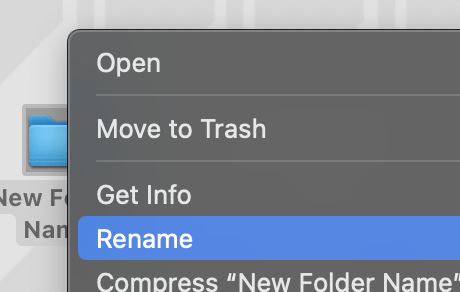
On Windows: Right-click the file or folder, select Rename, and type the new name. Press Enter when finished.
On Mac: Click once on the file or folder, press Enter, and type the new name.
Giving your files and folders clear, descriptive names helps you keep track of your documents and photos. You'll save time searching for files when their names reflect what they contain.
Find a file or folder with an unclear name (e.g., IMG_1234.jpg) and rename it to something more descriptive (e.g., Family Vacation 2024).
When renaming files, try to use names that include dates or keywords that will help you find them later.
