
Course Progress
50%
Course Progress
How to Adjust Your Browser Settings for a Better Experience
It's Day 84, and today we'll learn how to manage your internet browser settings to improve your browsing experience. Adjusting your settings can help speed up browsing and protect your privacy online.
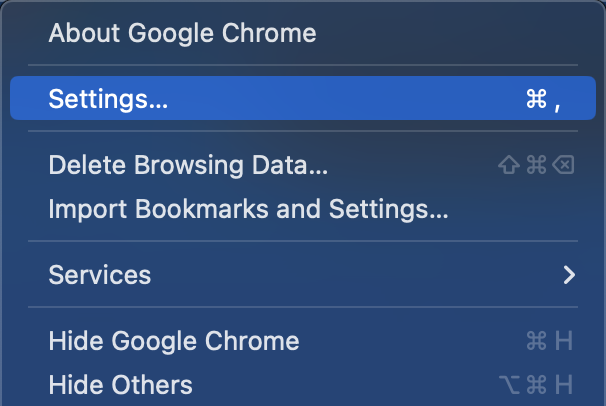
Clear your cache: Over time, your browser saves temporary files, which can slow it down. Clear your cache by going to your browser's settings:
On Chrome: Click the three dots in the top-right corner → More tools → Clear browsing data.
On Safari: Go to Safari → Clear History.
Set your default search engine: You can choose your preferred search engine (e.g., Google, Bing, DuckDuckGo) by adjusting your browser's settings.
Enable privacy features: Turn on features like Do Not Track or Incognito Mode to enhance privacy while browsing.
Managing your browser settings improves both speed and privacy. Clearing your cache regularly ensures faster load times, and adjusting privacy settings helps protect your personal information.
Go to your browser settings and clear your cache. Explore other settings like search engine options and privacy features to customize your browsing experience.
Turn on automatic updates for your browser to ensure you're always using the latest version with the best security features.
