
Course Progress
50%
Course Progress
Master Multitasking by Using Browser Tabs
It's Day 86, and today we'll learn how to use browser tabs to multitask effectively. Tabs allow you to open multiple websites in the same browser window, making it easier to switch between tasks.
Open a new tab: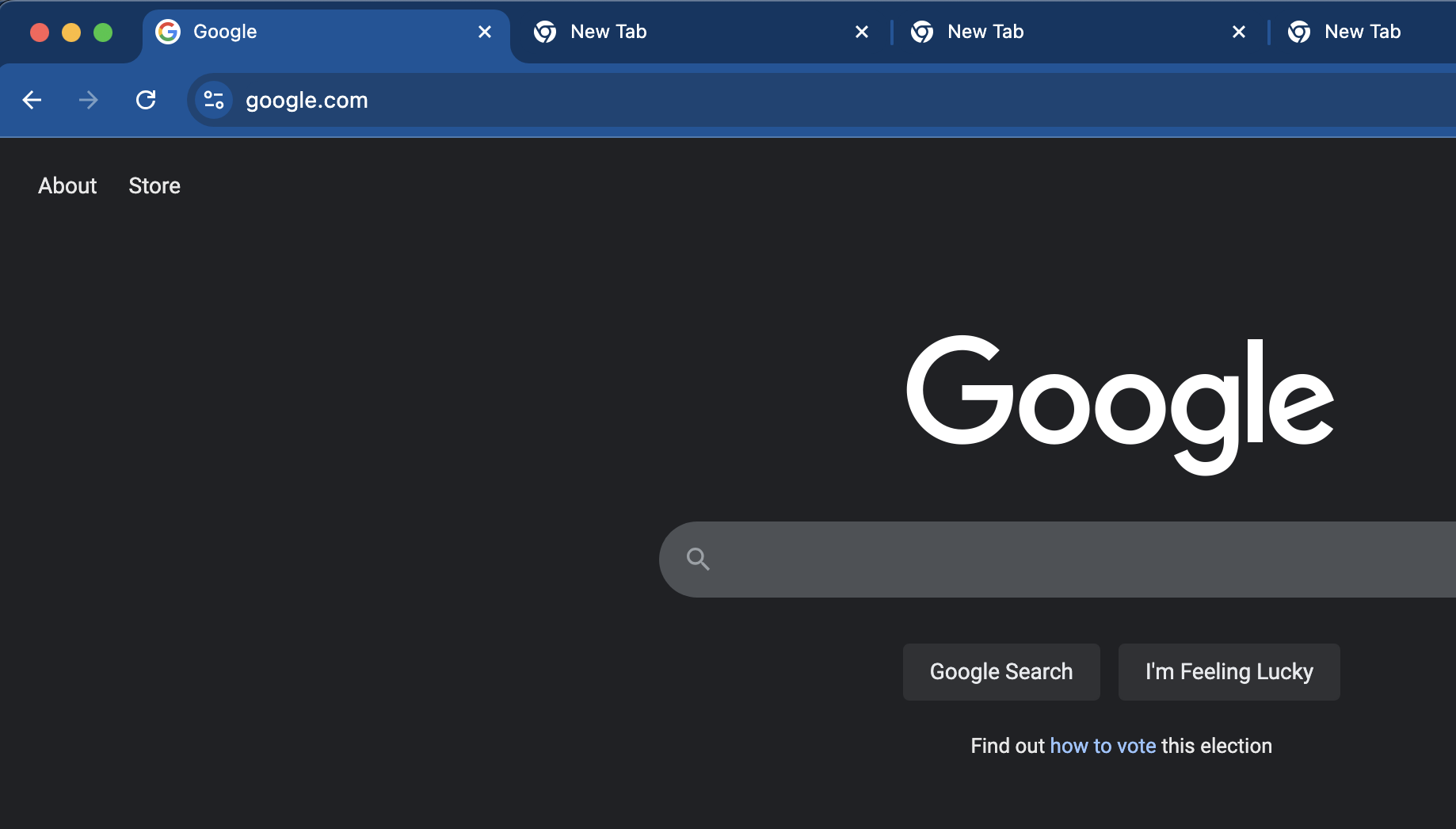
On Chrome, Firefox, and Edge: Click the + next to the current tab to open a new one.
On Safari: Use Cmd + T (Mac) or Ctrl + T (Windows) to open a new tab.
Switch between tabs: Click on the tab you want to view or use the shortcut Ctrl + Tab (Windows) or Cmd + Option + Right Arrow (Mac).
Close tabs: To close a tab, click the X on the tab or use the shortcut Ctrl + W (Windows) or Cmd + W (Mac).
Using multiple tabs makes it easier to work on several things at once. You can have email, a document, and a research page open all at the same time, switching between them without closing anything.
Open three different tabs in your browser and switch between them. Practice closing tabs when you're finished with them.
If you tend to keep a lot of tabs open, consider using a tab manager extension to help organize and group them.
